 PDF Bridge
- PDF Bridge
- Tools
- PDF to Word
PDF to Word that keeps the layout
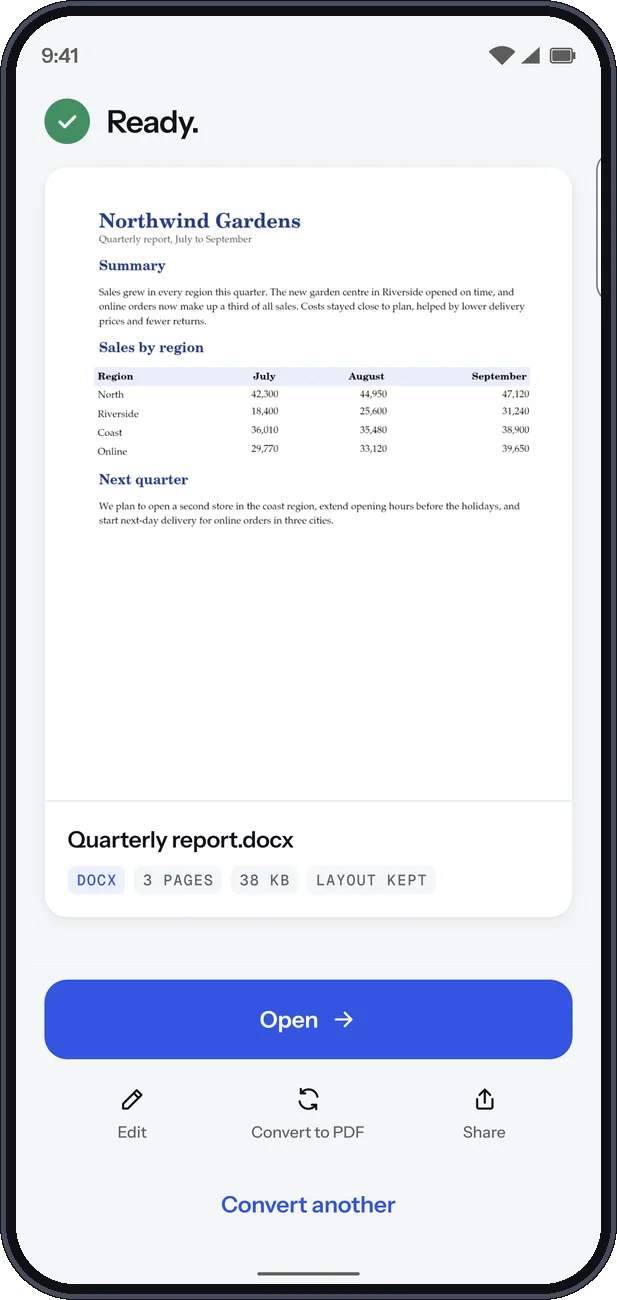
Convert any PDF into a Word document that looks like the original. Tables, columns, backgrounds and logos stay where they were, so you edit the text instead of rebuilding the page.
- Free to try
- No account needed
- Files deleted after converting
Why use PDF Bridge to convert PDF to Word
Most PDF to Word converters give you a document that technically contains the text but looks nothing like the PDF: tables collapse, columns run into each other and pictures end up on the wrong page.
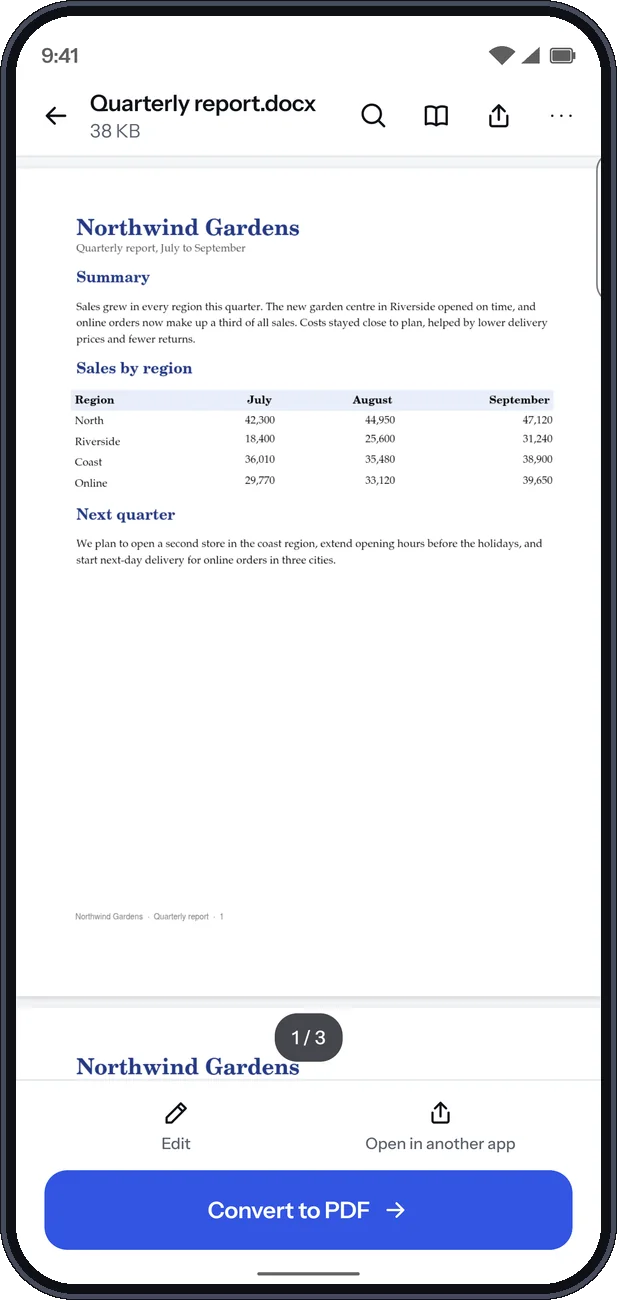
PDF Bridge rebuilds each page so the Word file matches the PDF. Choose "Keep the layout" for forms, letters and reports that must look the same, or "Flowing text" when you want plain paragraphs that are easiest to rewrite. Then edit the .docx right in the app, or open it in Microsoft Word or Google Docs.
How to convert PDF to Word on your phone
Open the PDF
From your files, email, chats or a download, or share it to PDF Bridge.
Choose the layout
Keep the layout as it looks, or choose flowing text that is easiest to edit.
Edit and share
Edit the Word document in the app, or share the .docx to Word, Google Docs or email.
Made for real documents
The page as it looks
Tables, columns, headers, backgrounds and logos stay in their places.
Flowing text option
For heavy rewriting, get clean paragraphs without fixed positions.
Built-in Word editor
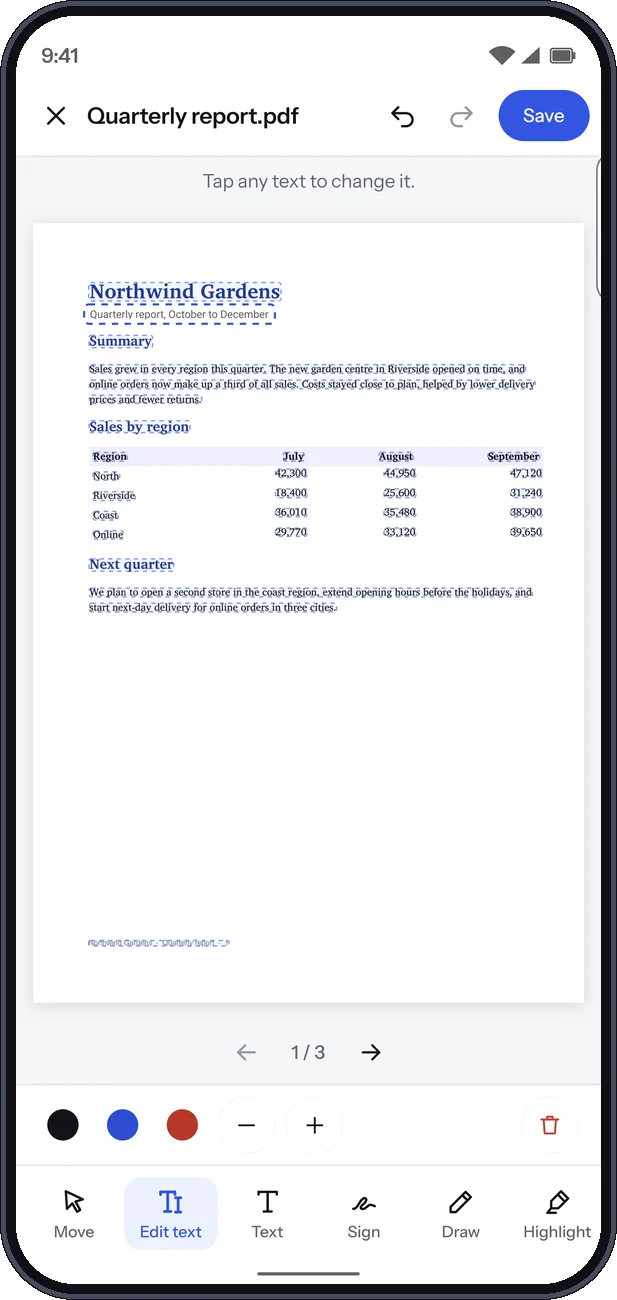
Change text, fonts, colours, lists and tables, and find and replace, on your phone.
Scanned PDFs too
Scanned pages are read with OCR in 34 languages and become editable text.
Locked PDFs
Password-protected PDFs open when you type the password.
Back to PDF
Finished editing? Turn the Word file back into a PDF in one tap.
PDF to Word in PDF Bridge
Handy for
- Contracts and agreements
- CVs and cover letters
- Reports and proposals
- Letters and notices
- Assignments and notes
- Invoices and quotes
PDF to Word: frequently asked questions
Will my PDF look the same in Word?
With "Keep the layout", the Word document is built to match the PDF page by page: tables, columns, images and backgrounds stay where they were. Very complex designs may need small touches, which you can make in the app.
Can I edit the Word file on my phone?
Yes. The built-in editor changes text, font size, colour and highlight, adds headings, lists, tables and page breaks, and finds and replaces words. Anything you don't touch stays exactly as it was.
Does it work with scanned PDFs?
Yes. Scanned pages are read with OCR in 34 languages and turned into editable text.
What about password-protected PDFs?
Type the password when you convert. It is used only to open that file.
Is PDF to Word free?
You can convert 2 files a week for free, up to 10 MB each. Reading and editing Word files in the app is always free.
Works well with
Try PDF to Word free
2 free files every week, no account needed. Your files are deleted after converting and saved only on your phone.