 PDF Bridge
- PDF Bridge
- Tools
- Photo to Word (OCR)
Photo to Word: turn pictures of pages into text
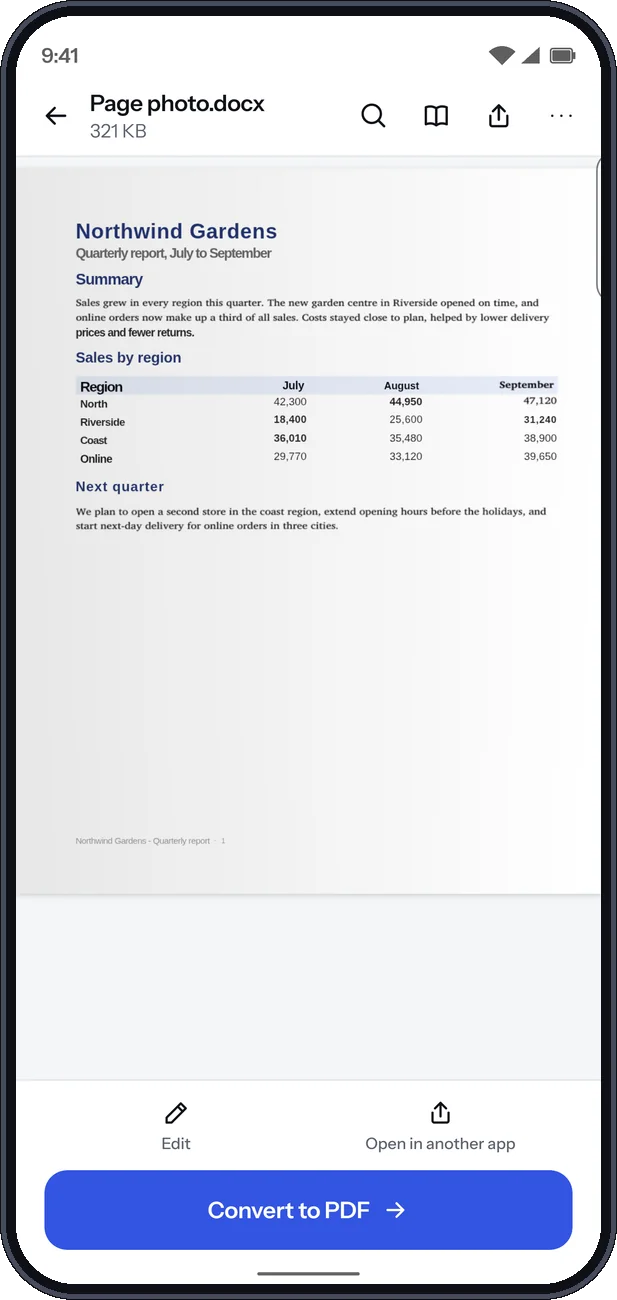
Take a photo of any page, or pick screenshots and pictures, and get a Word document you can edit. The text is read in 34 languages, tilted pages are straightened and tables keep their rows and columns.
- Free to try
- No account needed
- Files deleted after converting
Why use PDF Bridge to turn a photo into editable text
Retyping a printed page, a handout or a screenshot is slow and full of mistakes. Optical character recognition (OCR) reads the text for you, but simple OCR apps give you one long block of words.
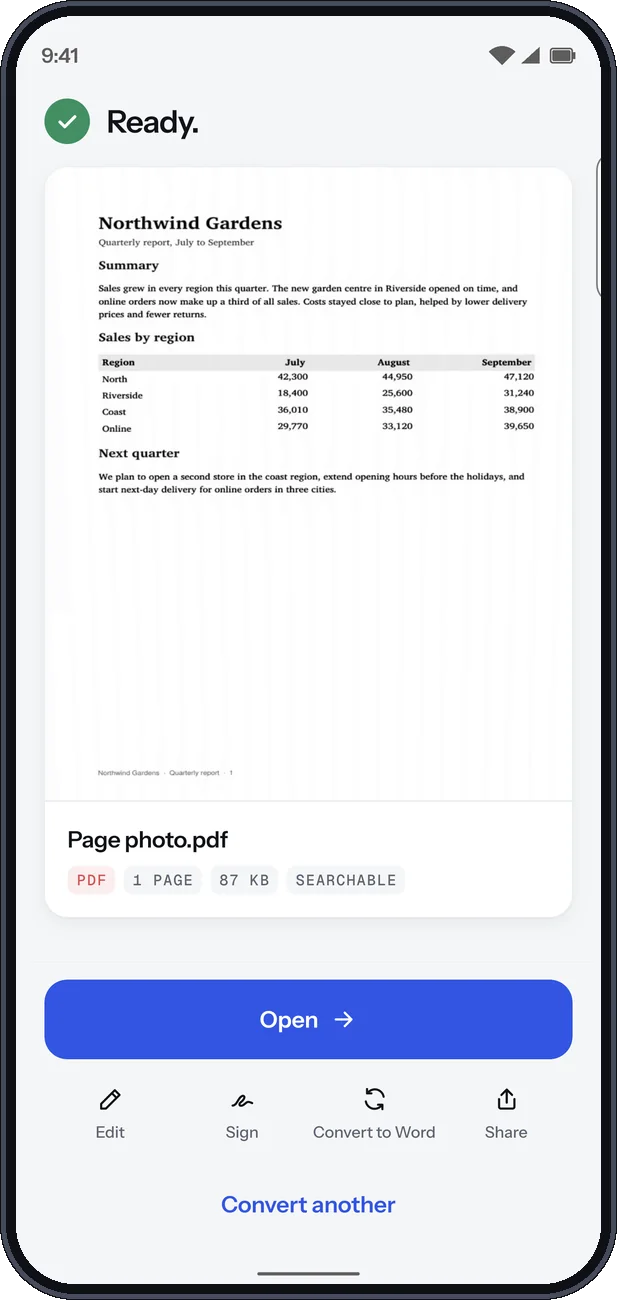
PDF Bridge straightens and cleans each photo first, reads the text in the language you choose, and keeps the shape of the page: headings, paragraphs and tables stay in order. The result is a Word document you can edit in the app or share.
How to turn a photo into editable text on your phone
Take or pick photos
Use the camera, or choose photos and screenshots you already have. Several pages make one document.
Choose the language
Pick the language of the text, from English, Arabic and Urdu to Chinese, Japanese and Hindi.
Edit the Word file
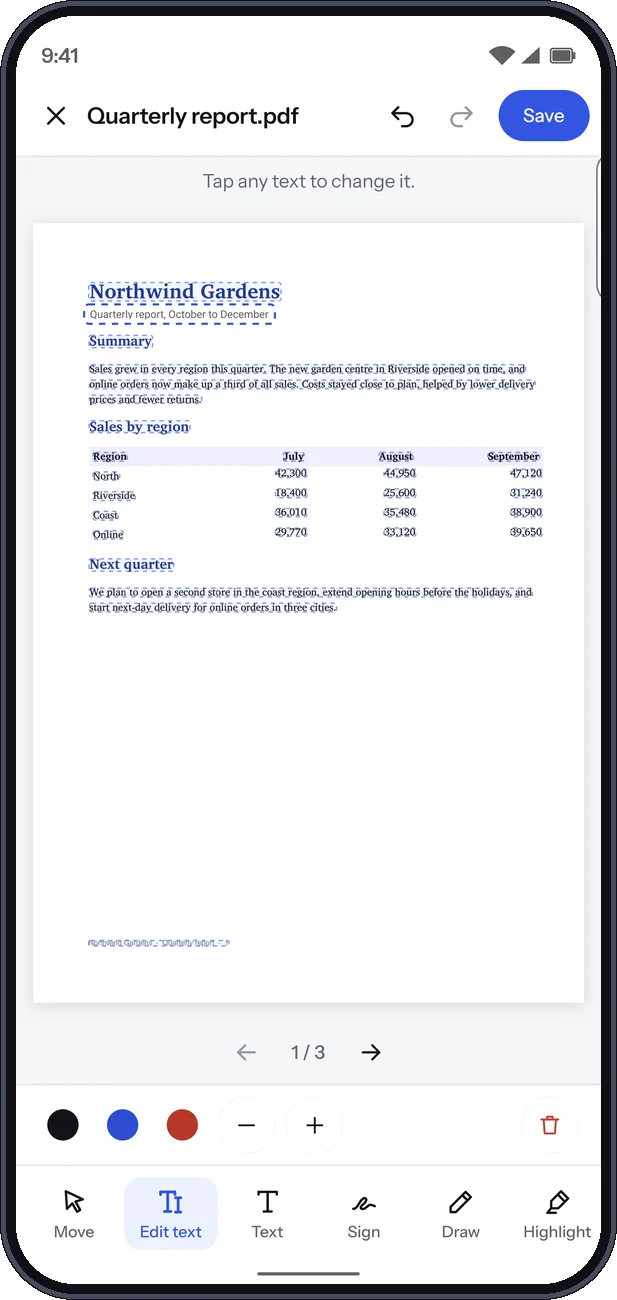
Fix anything you like in the app, then share the .docx or turn it into a PDF.
Made for real documents
34 OCR languages
Including English, Arabic, Urdu, Persian, Hindi, Bengali, Chinese, Japanese, Korean, Russian and Turkish.
Straightened pages
Tilted photos are turned upright and flattened before they are read.
Tables stay tables
Rows and columns in the photo become a real table in Word.
Several photos at once
Pick up to 3 pictures free, or 20 with Pro, and get one document.
Edit on your phone
Correct and format the text in the built-in Word editor.
Or straight to Excel
Photographed a table or a statement? Convert it to Excel instead.
Photo to Word (OCR) in PDF Bridge
Handy for
- Book pages and notes
- Printed letters
- Screenshots
- Handouts and worksheets
- Receipts
- Signs and notices
Photo to Word (OCR): frequently asked questions
Which languages can it read?
34 languages: Arabic, Bengali, Chinese (Simplified and Traditional), Czech, Danish, Dutch, English, Filipino, Finnish, French, German, Greek, Hebrew, Hindi, Hungarian, Indonesian, Italian, Japanese, Korean, Malay, Norwegian, Persian, Polish, Portuguese, Romanian, Russian, Spanish, Swedish, Thai, Turkish, Ukrainian, Urdu and Vietnamese.
Can it read handwriting?
It is made for printed and typed text. Very neat handwriting may be read, but results vary, so check the text afterwards.
How do I get the best result?
Photograph the page flat, in good light, filling most of the picture. The app straightens and cleans the page, but sharp photos read best.
Can I convert several photos into one document?
Yes. Pick up to 3 photos at once for free, or up to 20 with Pro, and they become one Word document in order.
Is it free?
Yes, 2 conversions a week are free. Pro removes the limit.
Works well with
Try Photo to Word (OCR) free
2 free files every week, no account needed. Your files are deleted after converting and saved only on your phone.