 PDF Bridge
- PDF Bridge
- Tools
- Fill & sign PDF forms
Fill in and sign PDF forms on your phone
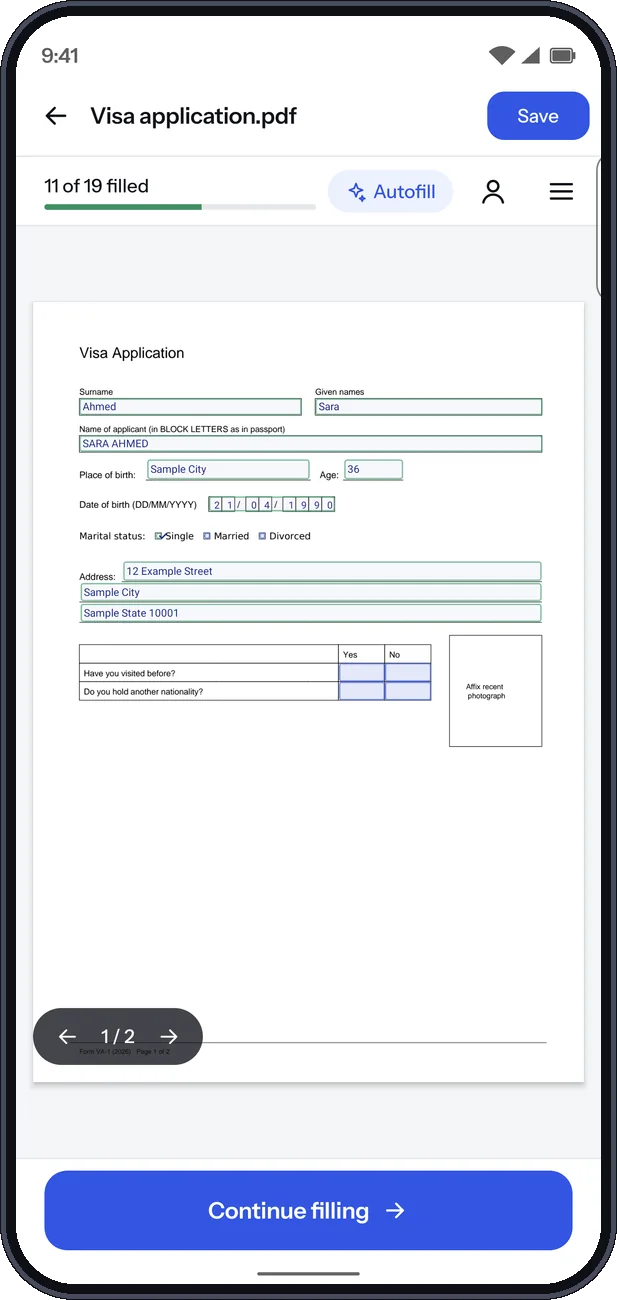
Open any form, fillable or flat, typed or scanned, and the places to write are found for you. Type your answers in a simple list, add your signature, and save a filled PDF to send or print.
- Free to try
- No account needed
- Files deleted after converting
Why use PDF Bridge to fill in and sign a PDF form
Printing a form, filling it by hand and scanning it back is a chore, and most phone apps can only fill PDFs that already have form fields. Many real forms, especially scanned ones, have none.
PDF Bridge finds the boxes, lines and tick boxes on most forms, including flat and scanned ones, and gives you a simple list to fill in. Your answers are placed neatly on the page. With Pro, save your details once to fill a form in one tap, and sign with your own signature.
How to fill in and sign a PDF form on your phone
Open the form
Any PDF form from your files, email, chats or a website.
Fill in the list
Type each answer, tick boxes and add today's date. Or tap Autofill with Pro.
Sign and save
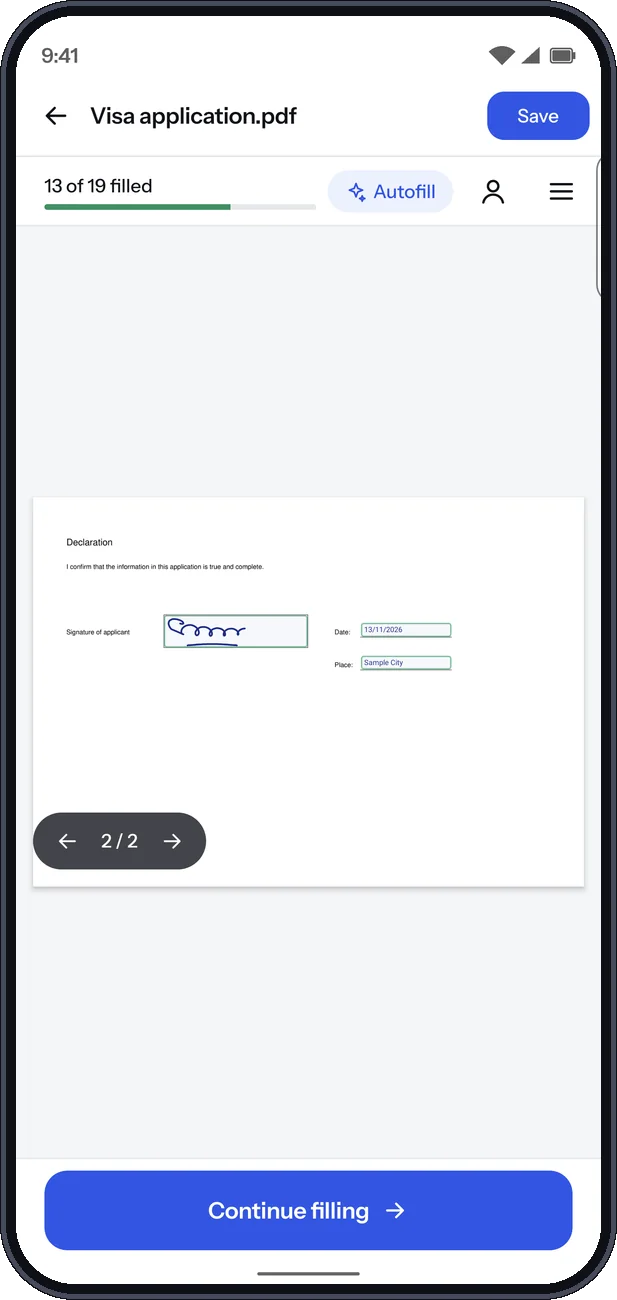
Add your signature and save a filled PDF to send, upload or print.
Made for real documents
Fields found for you
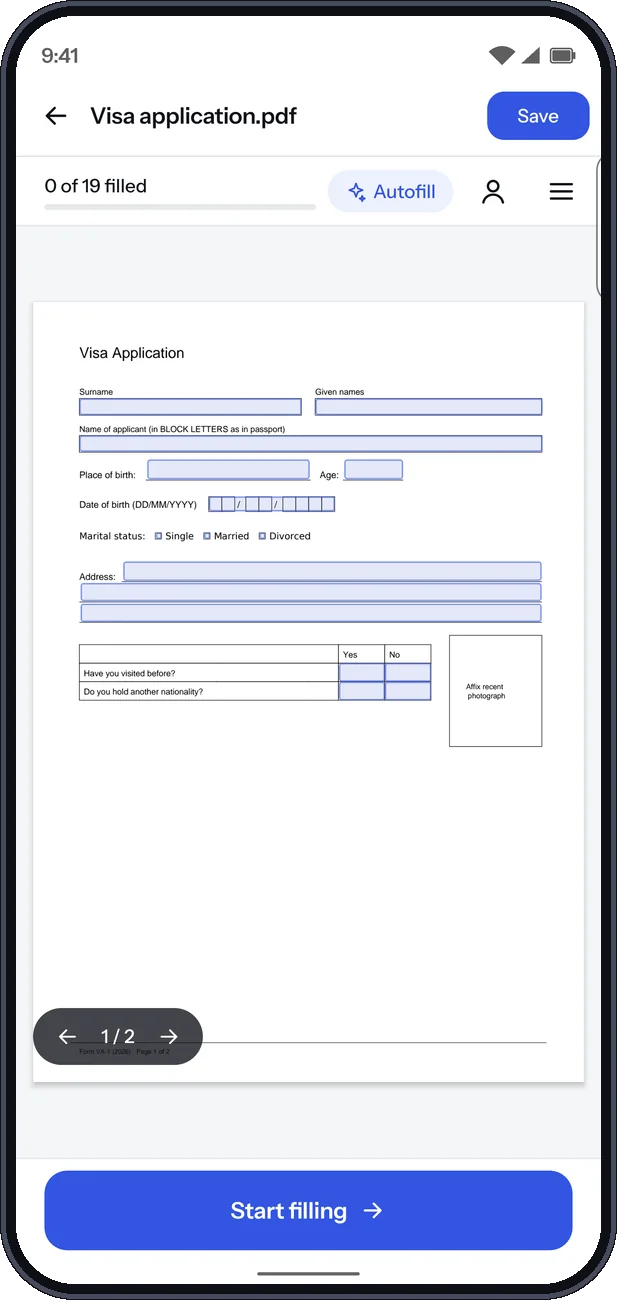
Text boxes, comb boxes, tick boxes and signature places, even on flat and scanned forms.
A simple list to fill
No zooming and pinching: answer each question in a list.
One-tap autofill
With Pro, save your name, address and details once and fill forms in one tap.
Your signature
Draw your signature once and add it to any form or PDF (Pro).
Lock the answers
Save a flattened copy so answers can't be changed.
Ticks, dates and text
Add ticks, today's date and notes anywhere on the page in the PDF editor.
Fill & sign PDF forms in PDF Bridge
Handy for
- Visa and passport forms
- Job applications
- Rental and lease forms
- School and university forms
- Bank and insurance forms
- Medical and consent forms
Fill & sign PDF forms: frequently asked questions
Can I fill a PDF form that isn't fillable?
Yes. On most flat and scanned forms, the app finds the boxes and lines to write in, so you can fill them like a fillable form.
How do I sign a PDF on my phone?
Draw your signature once and place it on the form or any PDF. Signing is part of Pro.
What does Autofill do?
Save your details once (name, date of birth, address, phone and more) and Autofill puts them in the right places on new forms. Your details are saved only on your phone. Autofill is part of Pro.
Can I fill forms for free?
Yes. Filling and saving a form uses one of your 2 free files a week. Signing and Autofill are part of Pro.
Can I print the filled form?
Yes. Save the filled PDF, then print or share it from your phone.
Works well with
Try Fill & sign PDF forms free
2 free files every week, no account needed. Your files are deleted after converting and saved only on your phone.